Go straight to the source.
Read website icon declarations, touch icons and manifests before ranking the available candidates.
Familiar icons.
Less searching.
Give your KeePass entries their website icons. Find better candidates, skip the duplicates, and make your vault easier to scan.
For KeePass 2.x on Windows · .NET Framework 4.8
Not compatible with KeePassXC.
Free plugin. No account to create.
Your providers, your choice.
See what fetching shares.
A little machine. Four familiar faces.
 GitHubgithub.com
 Figmafigma.com
 Notionnotion.so
 Spotifyspotify.com
Illustration, not a KeePass screenshot. No live requests.
01 / Built for your vault
The useful details, handled.
You have enough entries to look after.
Read website icon declarations, touch icons and manifests before ranking the available candidates.
Compare the available icon candidates, including the larger icons sites provide for mobile devices.
Process entries and subgroups together. Concurrent requests and caching cut out repetitive work.
Map androidapp:// package names to web domains, with built-in mappings and an optional Play Store fallback. Privacy disables store lookup.
SHA-256 checks detect duplicate icons, so entries can reuse what is already in your database.
Choose a managed profile, or use Custom to set providers, their order and synthetic fallbacks.
Start with an entry URL, reference, or mapped Android package.
Look for site icons and ask the enabled icon providers.
Compare candidate quality and trust, not just who replies first.
Use a SHA-256 hash to avoid storing the same icon again.
Assign the icon to your entry and reuse cached results.
03 / Choose your approach
Four managed profiles in v1.3, with Balanced recommended for everyday use.
Large batch fetching with reduced latency
Direct Site → Yandex · 22 s total per-entry budget.
Enabled favicon resolvers may receive the entry’s domain. Synthetic fallbacks are disabled.
Default everyday use balancing coverage and speed
Direct Site → Google → Twenty Icons · 15 s total per-entry budget.
Enabled favicon resolvers may receive the entry’s domain. Synthetic fallbacks are disabled.
Privacy-sensitive fetching without third-party providers
Direct Site · 22 s total per-entry budget.
No favicon resolvers or Android store lookup. Site-linked hosts and redirects remain possible. Synthetic fallbacks are disabled.
Favor icon precision over finding an icon for every entry
Direct Site → Google · 22 s total per-entry budget.
Enabled favicon resolvers may receive the entry’s domain. Synthetic fallbacks are disabled.
Explore the v1.3 profiles here, then choose your profile in KeePass settings.
Compare providers, budgets and Custom settings →Know what leaves your device.
Fetching icons makes network requests. Third-party icon services may receive domains from your entries and can see your IP address.
You can disable individual providers or synthetic fallbacks in KeeFetch settings. Direct-site fetching may also contact icon hosts linked by a website.
Read the privacy notesInside KeePass / v1.3
Real KeePass windows from the tested v1.3 release. Select a screenshot to see it at full size.
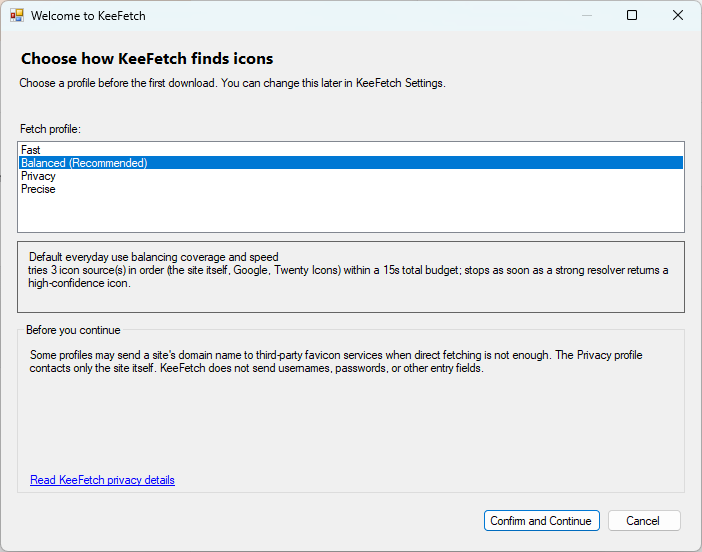
The first download asks how you want KeeFetch to find icons.
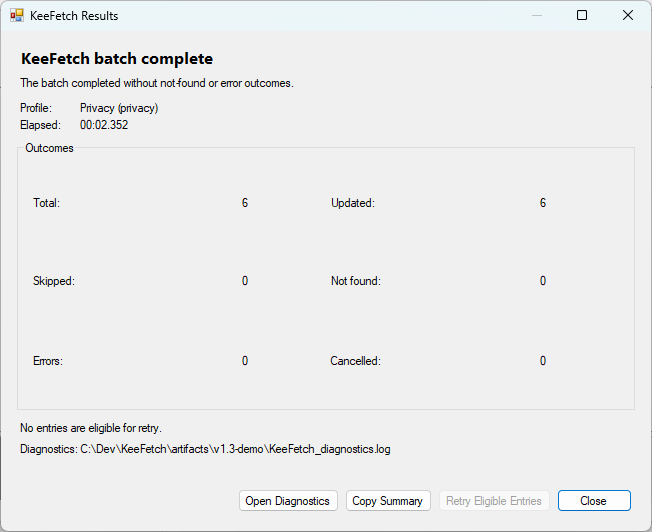
This six-entry Privacy demo completed successfully. Real batches can also report missing icons, errors and retry options.
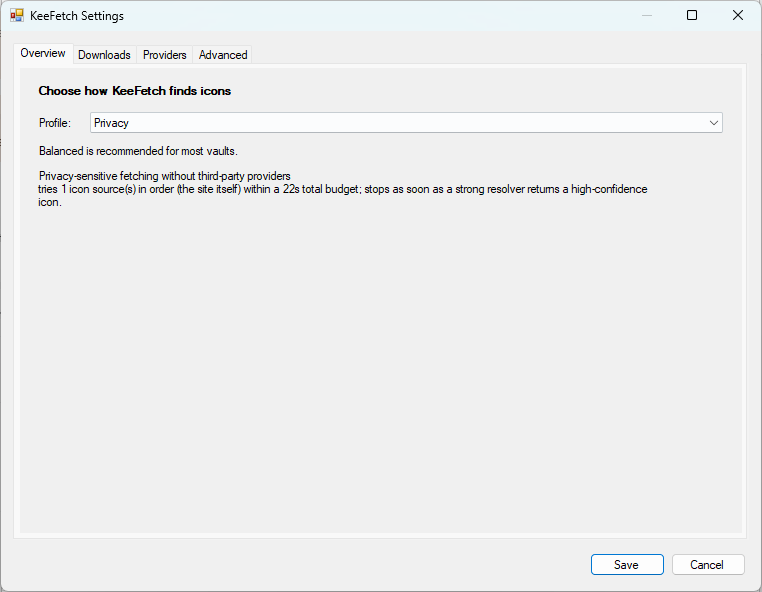
Switch profiles in Overview. Changes take effect when you save.
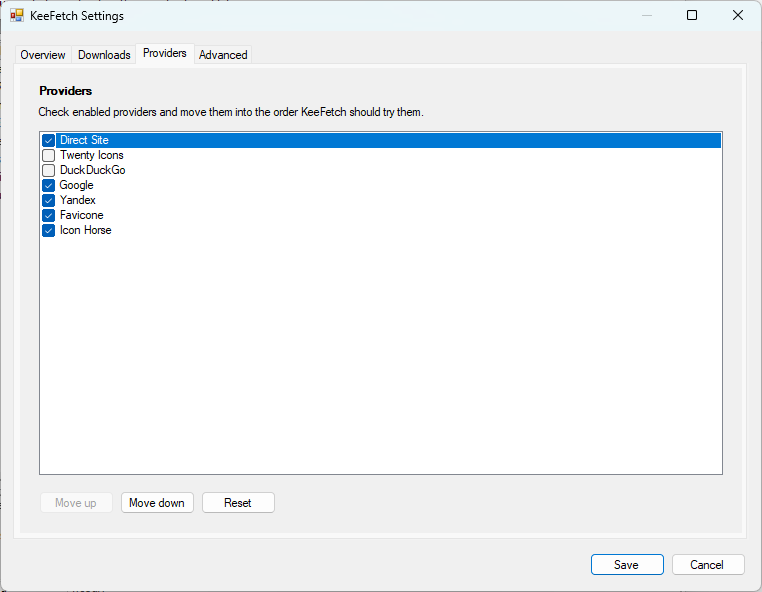
Use Custom to choose enabled providers and the order KeeFetch tries them.
04 / Make yourself at home
Get the stable v1.3 release for KeePass 2.x on Windows, with guided setup and the profiles shown above.
Download PLGX · v1.3.0Compare the PLGX file’s SHA-256 with the published checksum for v1.3.0.
4742355b5cadb089c7898b99d7a6ff95d068f8319ad97b3a1eb15b1d186a53a8Download KeeFetch.plgx from the release above.
Copy the file into the Plugins folder beside your KeePass executable.
Portable: KeePass/Plugins/
Installed: %ProgramFiles%/KeePass Password Safe 2/Plugins/
Restart KeePass. Right-click an entry and choose KeeFetch - Download Favicons.
Full installation & usage guideBuilt in the open.